RMON
RMON
- How to set up your Time zone
- How to create a Telegram bot and use it with RMON
- How to create a Slack APP and use it with RMON
- How to create PagerDuty Integration key and use it with RMON
- Notifications and alerting
- Status pages
- Security checklist
- Company sign-in with OIDC
- Get started with the RMON API
- Backup and recovery
- How to use groups and roles
- How to change user settings
Servers
Status pages
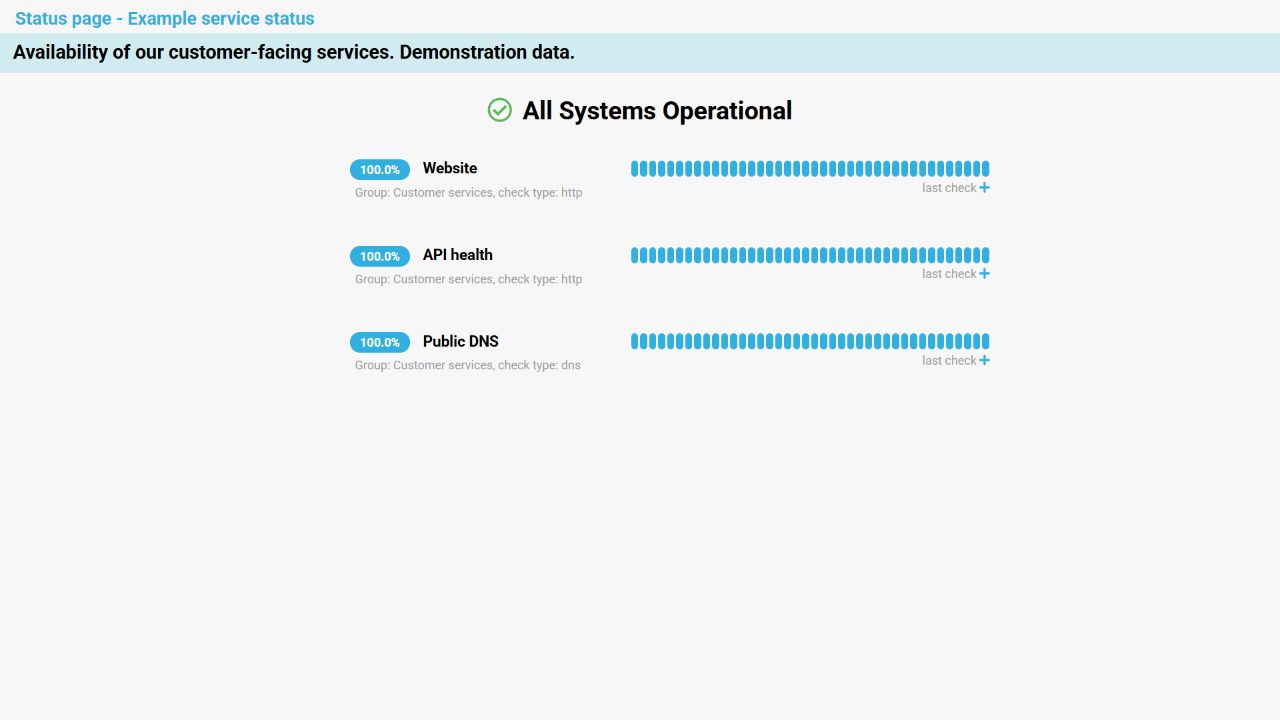
What a status page shows
A status page is a shareable view of selected RMON checks. Use it to show colleagues, customers, or an operations team whether published services are available without giving them access to the RMON interface.
The page shows an overall condition, each selected check's name and uptime, recent states, and an optional response chart. The group and check type may also be visible.

Create a page
- Open Status page.
- Click + Create status page.
- Enter a clear Name, such as Customer services.
- Enter a unique Slug. Use lowercase letters, numbers, and single hyphens; for example, customer-services.
- Click Next.
- Add an optional Description that explains the scope of the page.
- Move the checks you want to publish from All checks to Added checks with the + button. Use − to remove a check.
- Optionally add custom styles, then save the page.
Select only checks that are meaningful to the intended audience. A customer page usually needs customer-facing services, while an internal operations page may include dependencies and regional checks.
Open and share
After saving, the status-page list shows the page name, description and public path. Click the page row to open it in a new tab.
- Open the public page while signed out or in a private browser window.
- Check the title, description, service names, groups, and current states.
- Open an available response chart and confirm that its contents are appropriate for the audience.
- Copy the displayed page URL and share it with the intended users.
All Systems Operational means all checks on the page are currently healthy. Not all Systems Operational means at least one published check requires attention. Each check's color and uptime provide more detail.
Edit or delete a page
- Use the Edit icon to change the name, slug, description, selected checks, or custom styles.
- If you change the slug, previously shared links will no longer point to the new page address. Share the new URL with users.
- Use the Delete icon to permanently remove a page after confirming that nobody still depends on it.
- Review the selected checks whenever services are renamed, replaced, disabled, or moved between audiences.
Deleting a status page does not delete the checks displayed on it. Removing a check from a page also leaves the original check unchanged.
Publication checklist
- Use audience-friendly service names and descriptions.
- Do not expose internal hostnames, IP addresses, customer identifiers, incident notes, credentials, or private group names.
- Assume that the URL can be forwarded or indexed; a hard-to-guess slug is not access control.
- Publish the smallest useful set of checks.
- Verify custom styles in a private browser window and on mobile before sharing the page.
- Review the public page after every structural change to its checks.
For the wider installation baseline, see the Security checklist.
Troubleshooting
- The slug is rejected: use lowercase letters, numbers, and single hyphens, and make sure the slug is not already in use.
- A service is missing: edit the page and confirm that the check is listed under Added checks.
- A page shows an unexpected incident: open the corresponding check in RMON and review its latest result and location.
- The page has no useful data: confirm that its checks are enabled and have already produced results.
- The design is broken: remove or simplify the custom styles, save, and reload the public page.
- An old link stopped working: check whether the page slug was changed or the page was deleted.