 RMON
RMON
- How to set up your Time zone
- How to create a Telegram bot and use it with RMON
- How to create a Slack APP and use it with RMON
- How to create PagerDuty Integration key and use it with RMON
- Notifications and alerting
- Status pages
- Security checklist
- Company sign-in with OIDC
- Get started with the RMON API
- Backup and recovery
- How to use groups and roles
- How to change user settings
Servers
How to check SSH connection
Use Check SSH before installing an agent and after changing a host address, port, username, password or key. It tests access from RMON with the saved server settings.
Prepare the host and credential
Confirm that the SSH service is running on the target host and that the network allows RMON to reach its SSH port. Save the credential and select it on the server. For key authentication, authorize the public key for the exact remote username and upload the matching private key to RMON.
Review the server row
In Admin area → Servers, check the host address, SSH port and Credentials selection. For example, a host using rmon@192.0.2.13 on port 2222 needs 192.0.2.13 in IP, 2222 in Port and a credential whose Username is rmon.
Run the check
- Open the server row's Actions (⋮) menu and select Check SSH.
- Wait for the response and read the complete message.
- After correcting a failure, repeat this action from RMON.
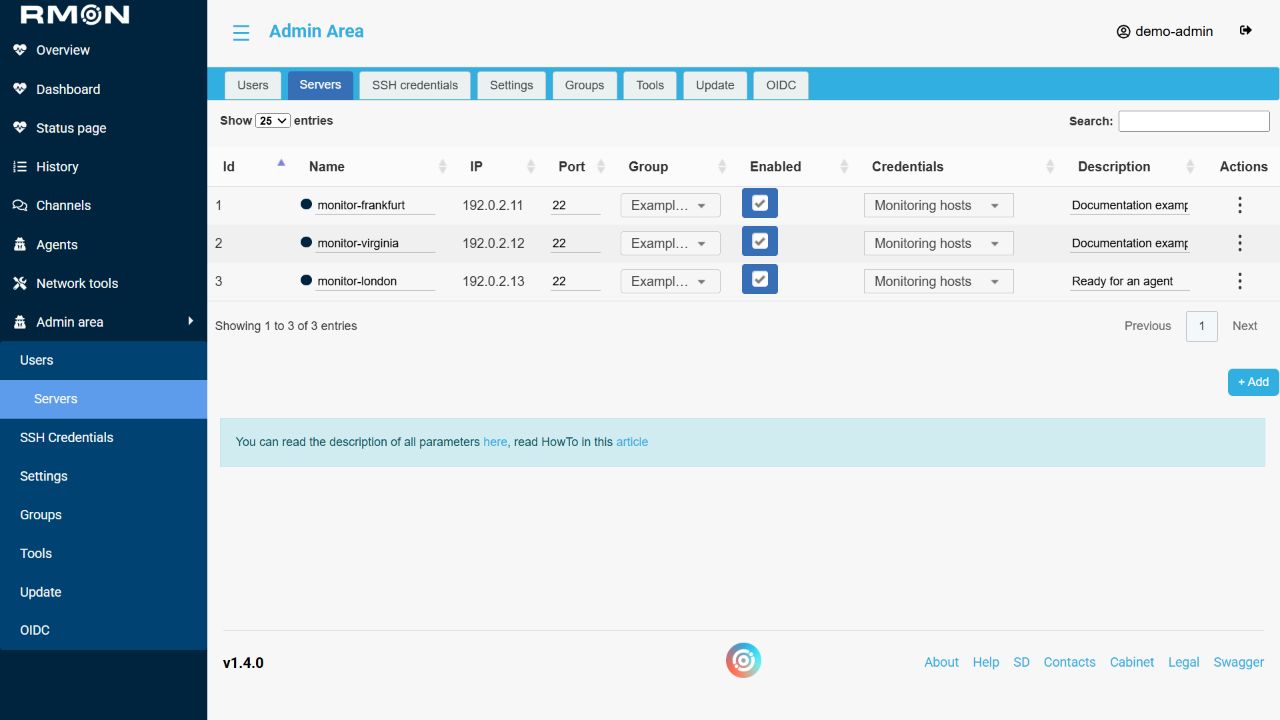
Expected result: a successful SSH connection. Agent installation and receipt of monitoring results must be checked separately. A workstation login can succeed while RMON is blocked by a different network route or firewall rule.
Resolve common failures
Scroll horizontally to view the full table.
| Symptom | Check and correct | Verification |
|---|---|---|
| Connection timed out | Check the address, SSH port, host power state, network route and firewall rules from the RMON host/container to the target. | Repeat Check SSH from RMON after access is allowed. |
| Connection refused | Confirm SSH is listening on the saved port. Correct the port if the host uses a nonstandard value. | The connection reaches SSH and proceeds to authentication. |
| Authentication failed / Permission denied | Check the saved username and credential. Confirm that the corresponding public key is authorized for that user, or replace the account password. | Check SSH succeeds with the saved credential. |
| Private key cannot be loaded | Upload the complete private key, preserve line breaks, and enter the correct key passphrase. | Upload succeeds and Check SSH authenticates. |
| Hostname cannot be resolved | Correct the hostname or DNS access from RMON. A temporary IP test can help identify a DNS problem. | The same saved address works from RMON. |
| SSH works; installation asks for sudo password | Have the host administrator allow non-interactive sudo for the installation account. Check with sudo -n id -u while signed in as that user. | The command prints 0 and installation passes its privilege check. |
For an agent on the same Docker host as RMON, use the host's reachable address. A server name such as localhost is only a label; 127.0.0.1 inside the RMON container points back to that container.
Once SSH succeeds, continue with agent installation. If a later task fails, use installation troubleshooting.